
The first time you create a page in WordPress, it feels almost too easy. You click a button, add some text, maybe throw in an image, and hit publish. Done. But then you check your website, and something feels off. The spacing looks uneven, sections don’t align, and the page doesn’t match the rest of your site.
I’ve seen this happen more times than I can count. The issue isn’t the platform; it’s how the page is built. WordPress gives you flexibility, but without structure, that flexibility can quickly turn into inconsistency. Once you understand how pages actually inherit design and how layouts behave, everything starts to fall into place.
Why WordPress Layouts Break So Easily?
Most people assume layouts break because of technical issues. In reality, it usually comes down to how elements are placed and styled inside the editor.
When you create pages in WordPress, you’re not just adding content; you’re working inside a system controlled by your theme, templates, and block settings. If you ignore that system, even small changes can disrupt the layout.
The most common causes include inconsistent content widths, random block usage, and mixing different layout styles on the same page. Another big one is skipping structure and building everything manually without using predefined patterns.
How to Create Pages in WordPress Without Messing Up Design?
Start With a Structured Setup
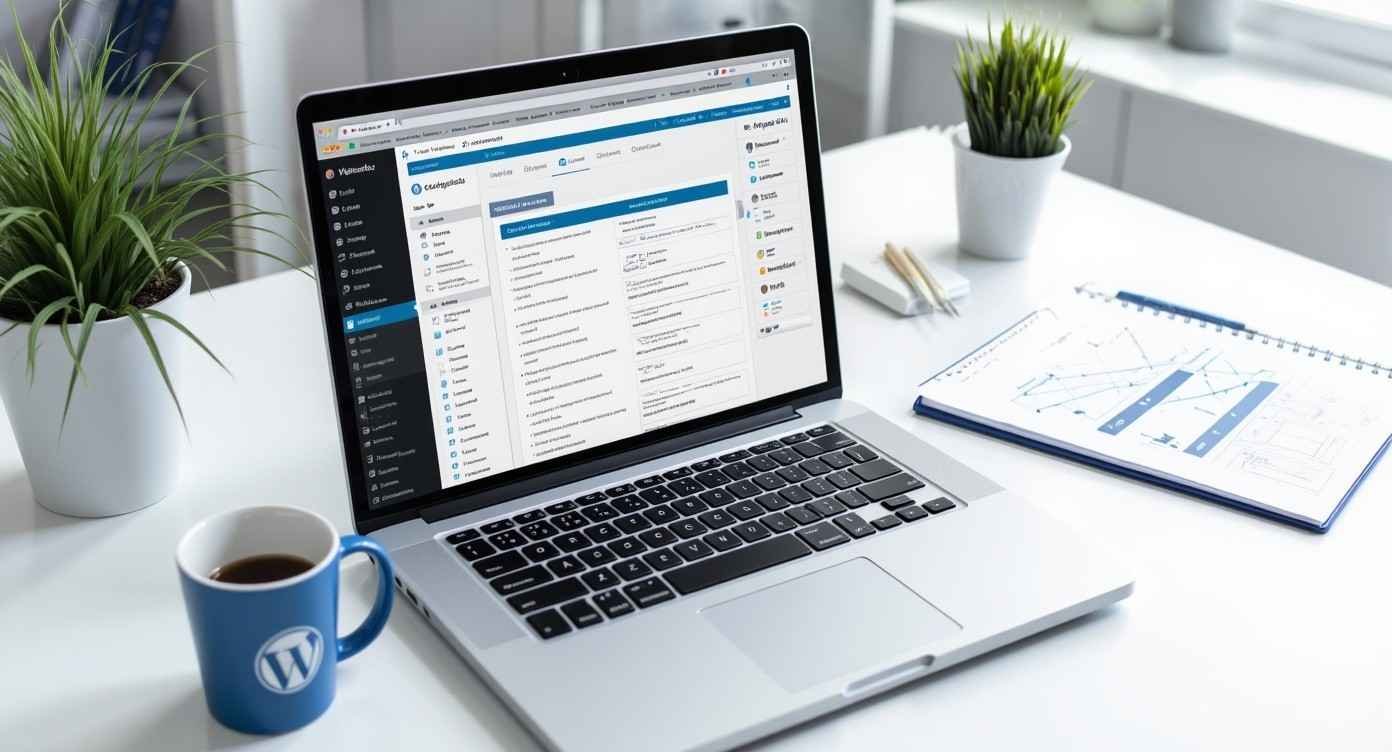
Before you even create pages, your base setup matters more than you think. If your theme, templates, and layout rules are not clear, every new page becomes a gamble.
This is why following a WordPress setup step-by-step approach makes a difference early on. When your foundation is clean, your pages naturally stay consistent.
Now, when creating a page:
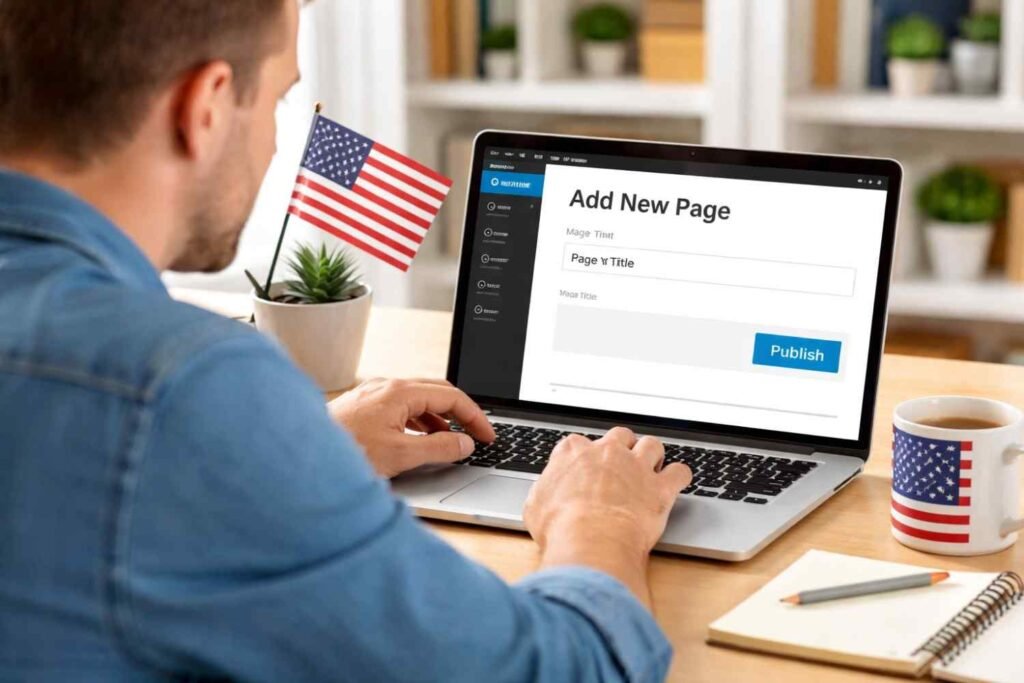
- Go to Pages → Add New
- Add your page title
- Open the block editor
Instead of starting from a blank canvas, use the existing structures your theme provides.
Use Block Patterns Instead of Building From Scratch
This is one of the most underrated features in WordPress.
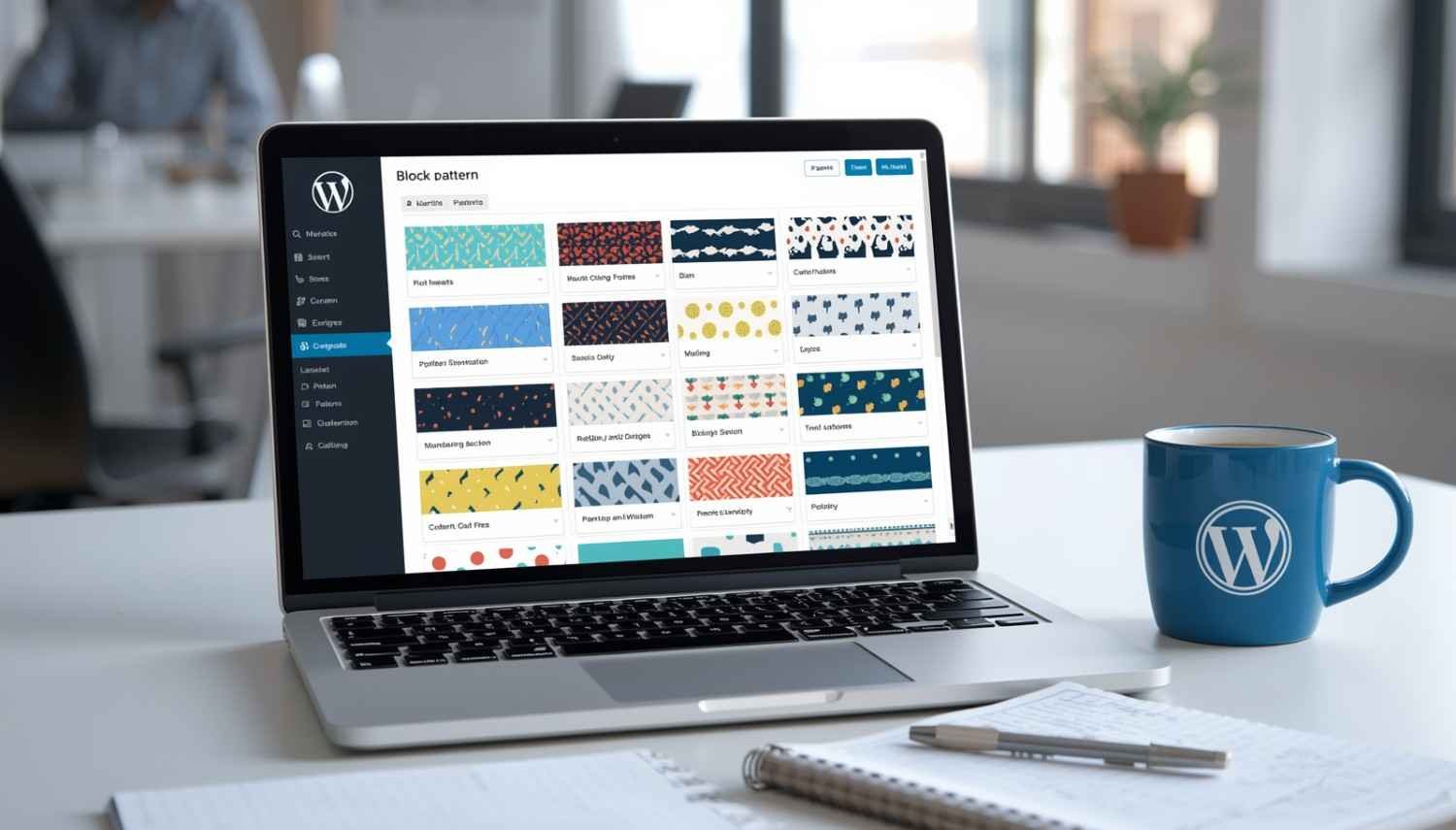
Block patterns are pre-designed sections made using grouped blocks. These include things like hero sections, testimonials, pricing layouts, and more. The reason they matter is simple: they’re already designed to fit your theme.
You can access them from the block inserter (+ icon) and switch to the “Patterns” tab.
Once inserted, you can:
- Replace text
- Swap images
- Adjust content
Without breaking the layout itself.
If you want consistency across multiple pages, use synced patterns. Updating one instance updates all of them, which saves time and prevents design mismatches.
Always Use Page Templates
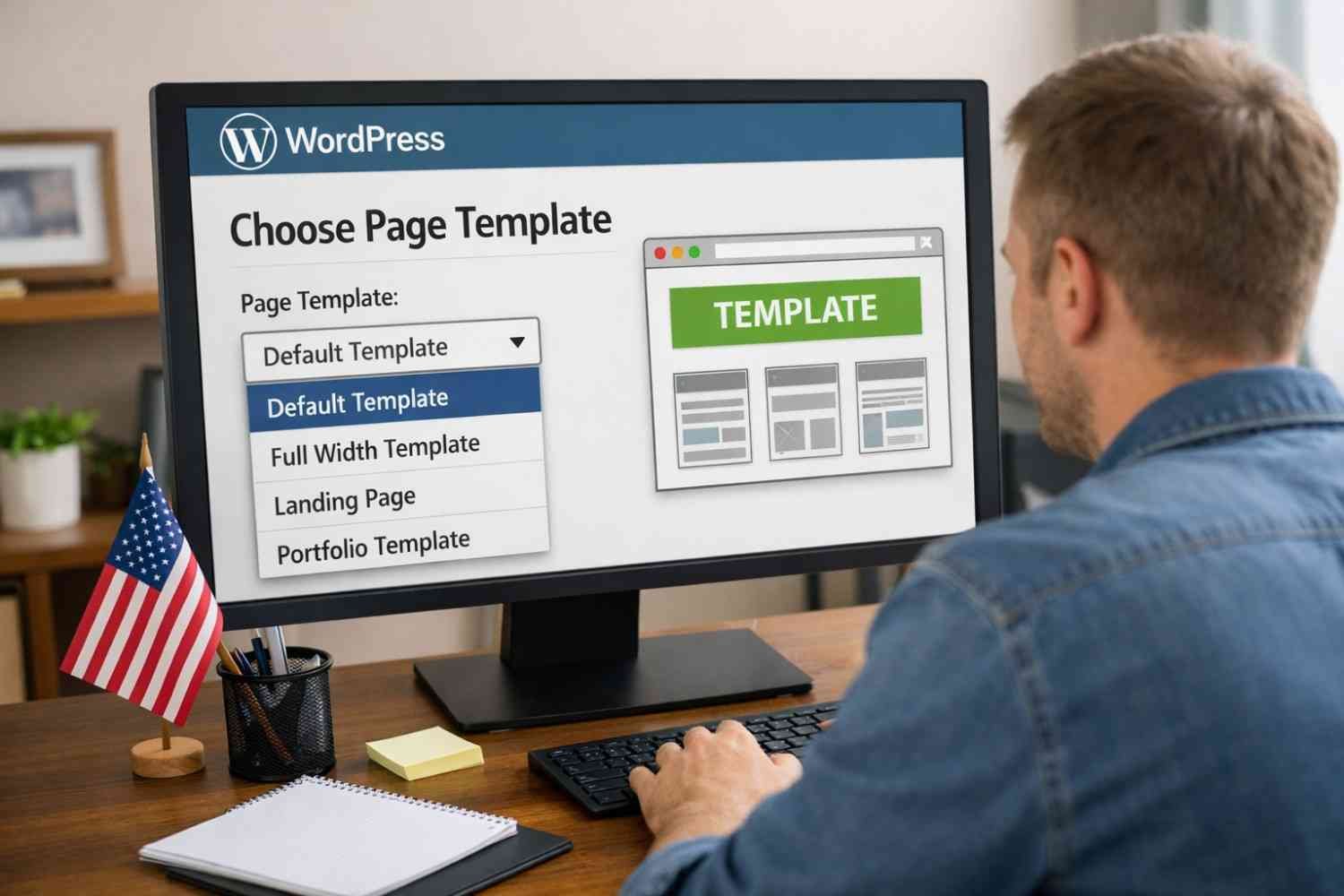
A lot of layout issues happen because people ignore templates completely.
Your theme usually comes with predefined templates like:
- Full width
- No sidebar
- Default layout
- Landing page
These templates control the overall structure of your page. You can find them in the page settings sidebar inside the editor.
If you want different designs for different pages, you can create custom templates in the site editor and assign them individually. This keeps changes isolated instead of affecting your entire website.
Keep Your Content Width Consistent
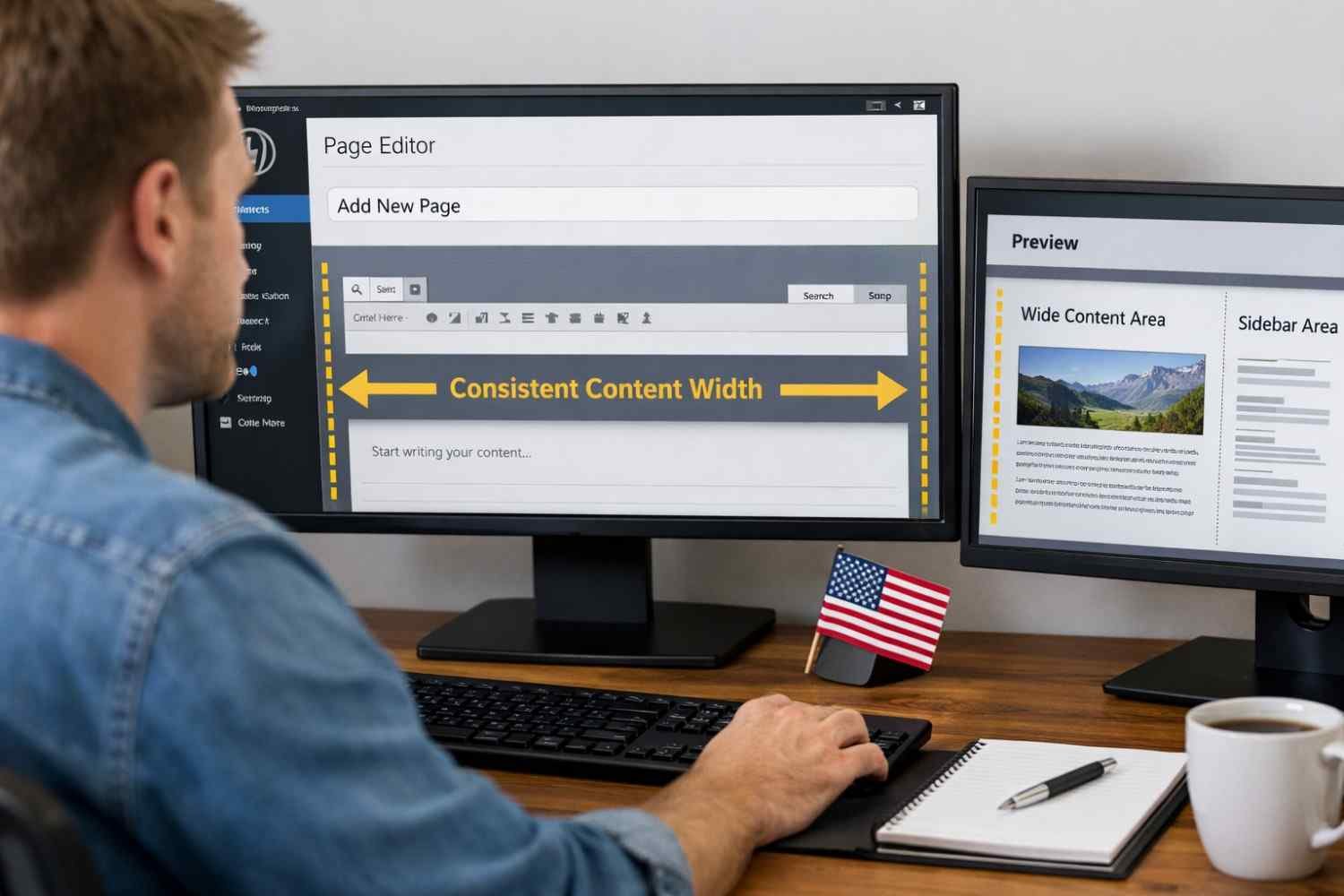
One of the fastest ways to break a layout is by ignoring width settings.
Modern WordPress themes typically use four types of content widths:
- Normal – Standard readable text width
- Wide – Slightly expanded layout
- Full-width – Edge-to-edge sections
- Custom – Manually adjusted
Problems start when these are used randomly. For example, mixing full-width images inside a normal-width section without alignment can distort the design.
Stick to a consistent structure within each page. If you start with a standard layout, maintain it unless there’s a clear reason to switch.
Practical Mistakes That Break Page Layouts
These are not theoretical issues. These are real mistakes that quietly ruin your page design.
1. Ignoring Mobile Preview

A page that looks perfect on a desktop can completely fall apart on smaller screens. Text overlaps, images resize poorly, and spacing collapses.
Always use the preview option to check tablet and mobile views before publishing.
2. Using Images Without Proper Dimensions
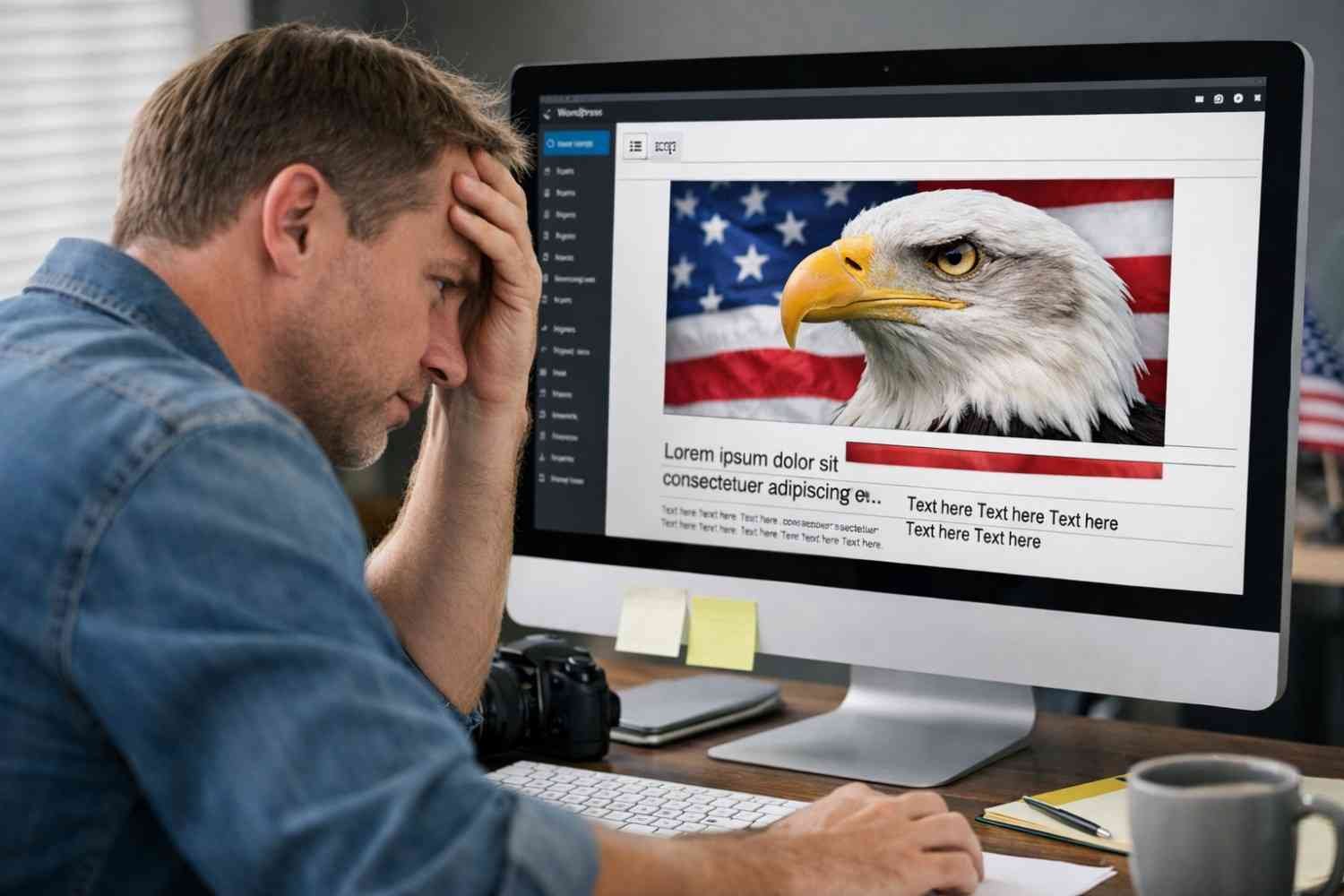
Images play a bigger role in layout than most people realize. If dimensions are inconsistent, your content shifts while loading, which affects both design and user experience.
Make sure:
- Images follow similar aspect ratios
- Sizes are optimized
- Layout doesn’t depend on random image scaling
3. Building With Placeholder Content
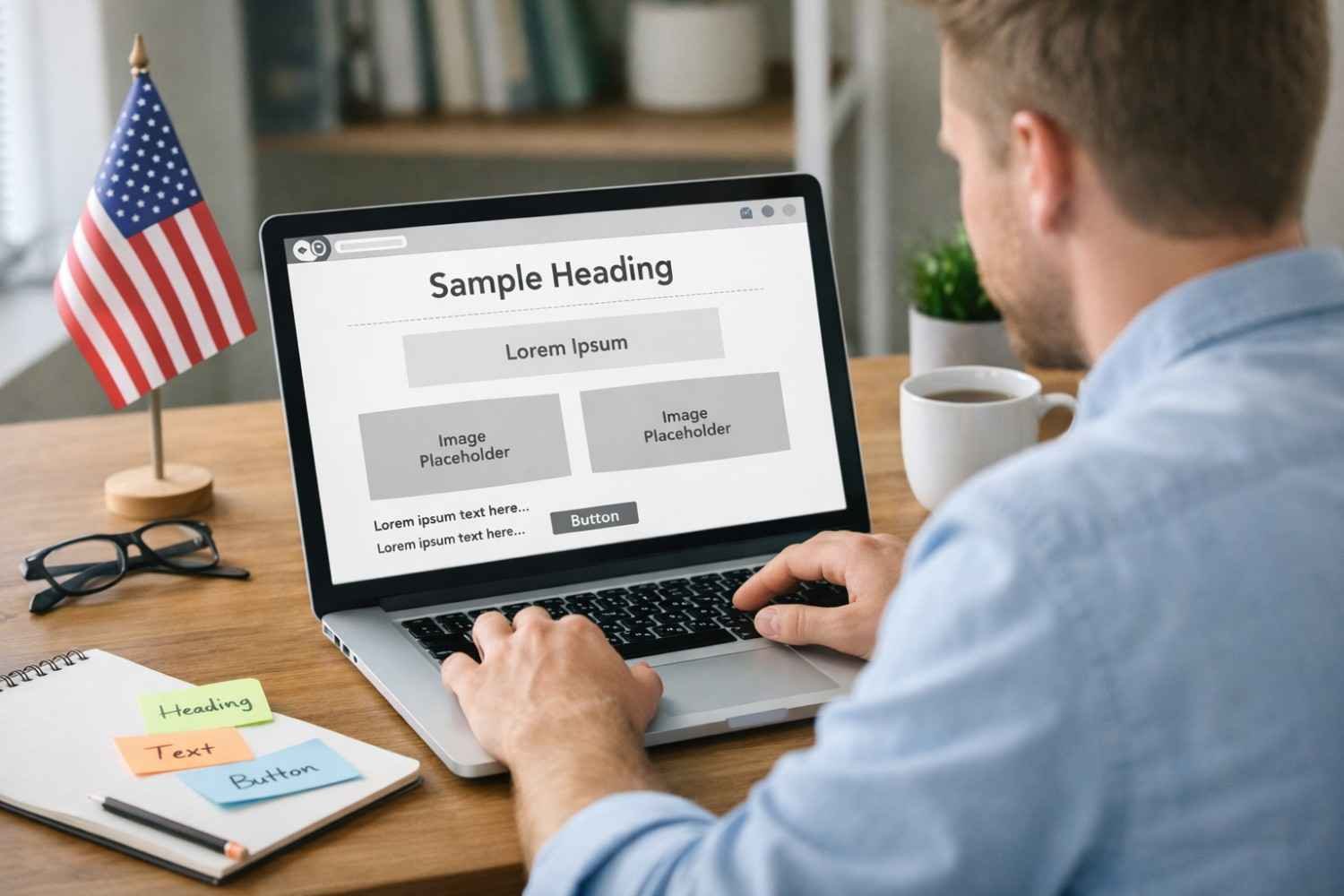
Designs that look good with short dummy text often break when real content is added.
Long headlines, uneven paragraphs, or larger images can stretch sections unexpectedly. Always test your page with realistic content before finalizing it.
4. Mixing Too Many Layout Styles

Trying to experiment is good, but combining multiple styles on one page creates visual inconsistency.
If one section uses a grid layout and another uses a completely different alignment system, the page loses structure.
Keep things consistent. Clean design always beats flashy inconsistency.
5. Not Clearing Cache After Changes
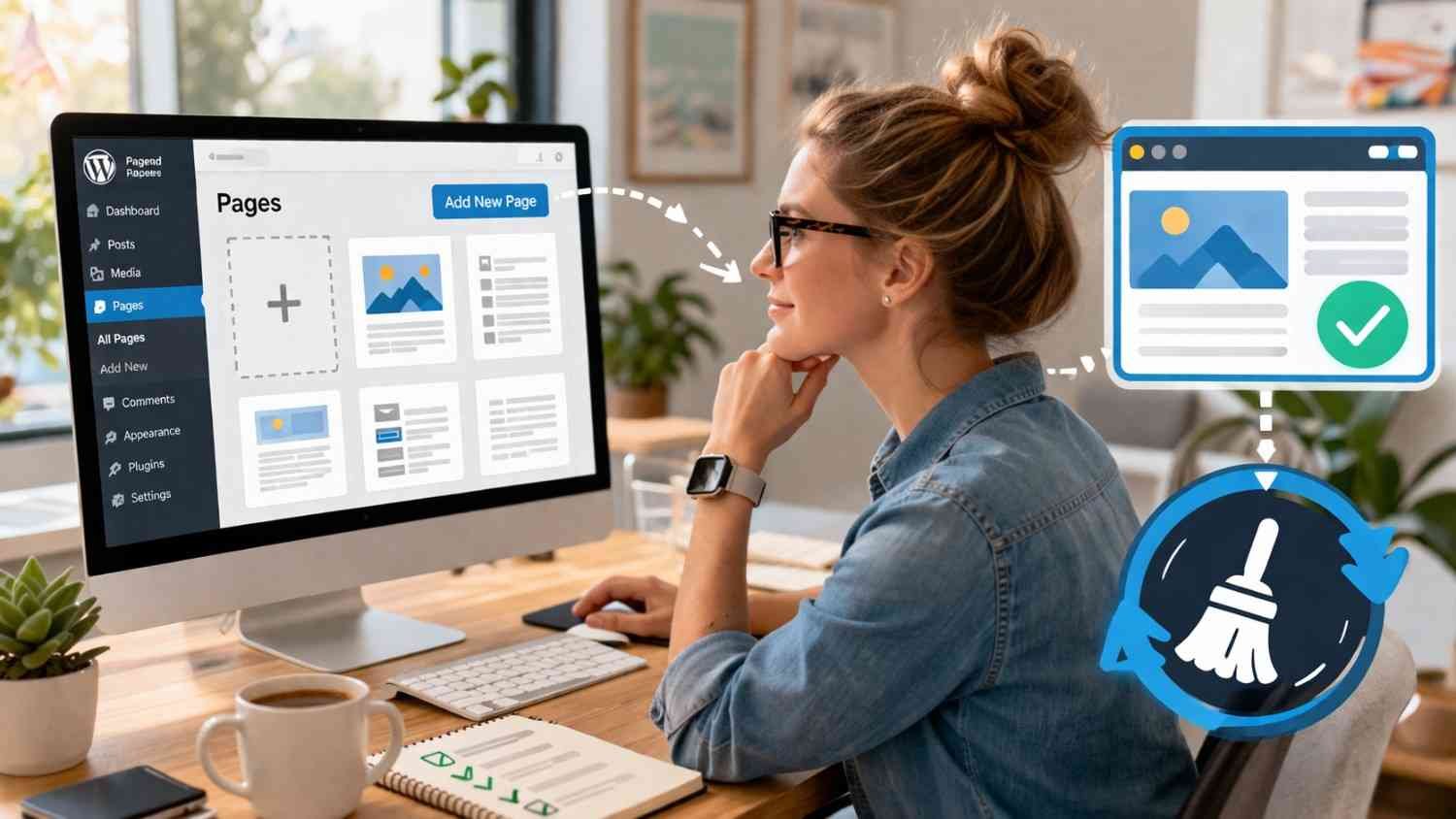
Sometimes your layout looks broken simply because you’re seeing an outdated version of your page.
If updates don’t reflect properly:
- Clear browser cache
- Clear caching plugins
This ensures you’re viewing the actual live version.
Pages vs Posts: Why It Matters for Layout
A lot of beginners ignore this, but it plays a role in structure.
Pages are meant for:
- Static content
- Core sections like About, Contact, Services
Posts are meant for:
- Blog content
- Time-based updates
Pages usually rely more on templates and structured layouts, which makes them more sensitive to design inconsistencies. Treat them as permanent assets, not quick content pieces.
Building Pages That Stay Consistent Over Time
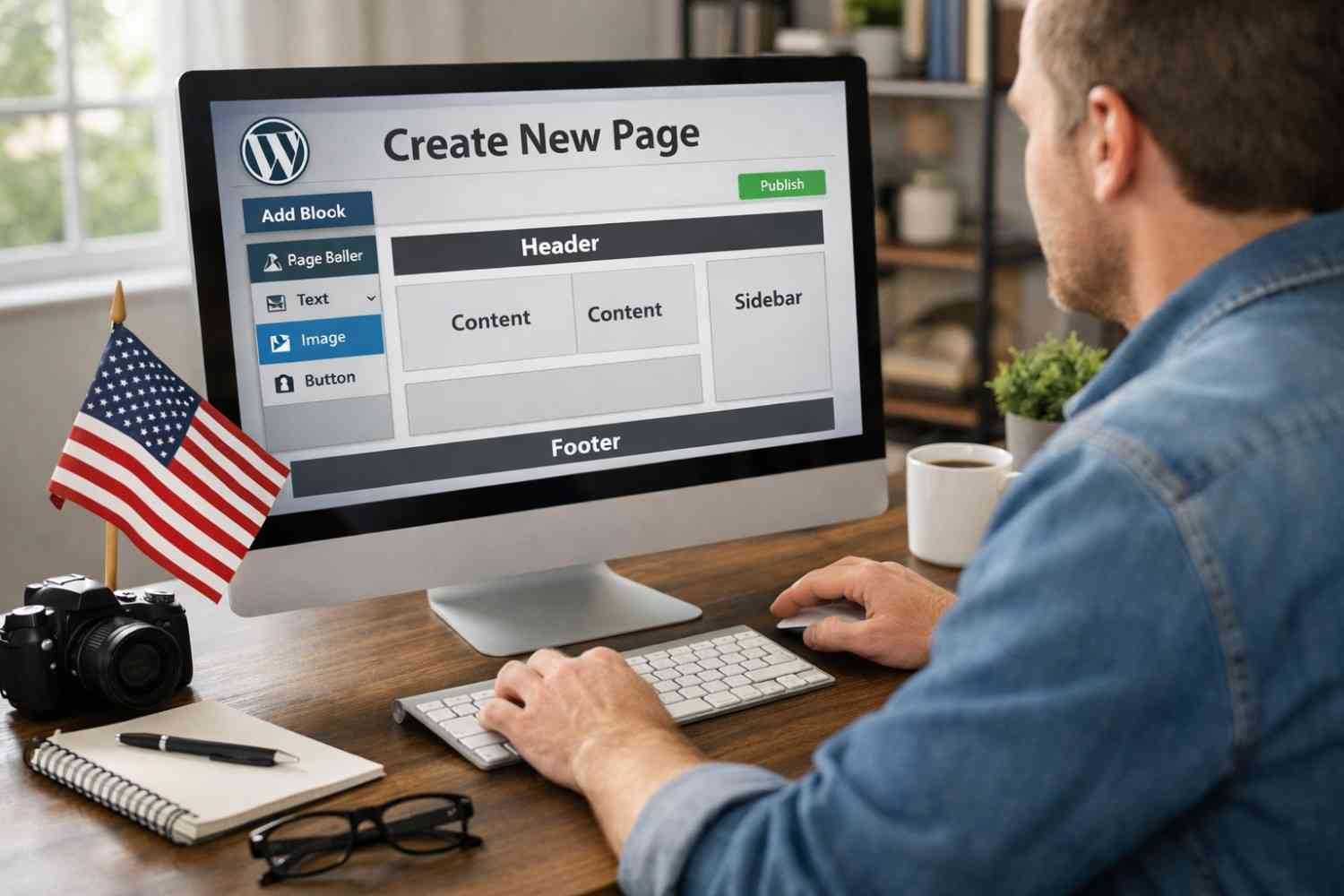
Once you understand how WordPress handles structure, creating pages becomes less about trial and error and more about following a system.
You stop asking:
“Why did this break?”
And start thinking:
“Does this follow my layout rules?”
Consistency comes from:
- Using the same templates
- Reusing patterns
- Maintaining spacing and width
- Testing before publishing
That’s how clean websites are actually built.
FAQs: How to Create Pages in WordPress Without Breaking Your Website Layout
1. How do I create pages in WordPress as a beginner?
Go to your dashboard, click “Pages,” then “Add New.” Use the block editor to add content, and rely on patterns and templates instead of building everything manually.
2. What is the difference between pages and posts in WordPress?
Pages are static and used for core website sections, while posts are dynamic and used for blog content. Pages rely more on layout consistency.
3. Why does my WordPress page layout look broken?
It usually happens due to inconsistent widths, improper image sizes, or mixing different layout styles without structure.
4. Can I redesign a page without affecting my whole site?
Yes. Use page templates or create custom templates. This allows you to change one page layout without impacting others.
Wrapping It All Up
Creating pages in WordPress is easy. Creating pages that actually look clean and consistent takes a bit more awareness. Once you stop treating the editor like a blank canvas and start working within your theme’s structure, most layout problems disappear.
You don’t need advanced skills or complicated tools. You just need to respect how WordPress handles layouts. Stick to patterns, use templates, and test your content properly. That alone will put you ahead of most beginners.
And once you get comfortable with this process, you’ll notice something important: your pages won’t just look better, they’ll feel intentional.