
I’ve seen websites break over something as simple as a WordPress update. One minute, everything looks fine, and the next, layouts are broken, plugins stop working, and traffic starts dipping without any obvious reason. Most of the time, it’s not the update itself, it’s how the update was handled.
If you’re managing a website while juggling things like content, traffic, or even figuring out how to run online marketing campaigns, the last thing you want is downtime or ranking loss. Updating WordPress isn’t risky by default. It just needs to be done in a way that protects what you’ve already built.
Why WordPress Updates Can Impact SEO And Performance
WordPress updates touch core files, themes, and plugins. If even one element isn’t compatible, it can slow your site down, break layouts, or create errors that search engines pick up quickly.
I’ve personally noticed that performance dips often come from:
- Plugin conflicts after updates
- Unoptimized scripts are loading incorrectly
- Broken internal links or redirects
- Layout shifts affecting user experience
Even small issues can impact Core Web Vitals, which directly influence rankings and engagement.
What You Should Do Before Updating WordPress
Skipping preparation is where most problems begin. A few simple steps can save hours of fixing later.
Create A Full Backup First
Always start with a complete backup files and database. This gives you a restore point if anything goes wrong.
Many site owners rely on tools like UpdraftPlus or BlogVault because they automate the process. But the key is not the tool it’s consistency. If your last backup is weeks old, it won’t help much.
Use A Staging Site Instead Of Updating Live
This is one of those things people ignore until something breaks.
A staging site is a clone of your live website where you can safely test updates. Most modern hosting platforms offer one-click staging, and it’s worth using every single time.
It lets you:
- Test updates without affecting visitors
- Identify plugin or theme conflicts
- Fix issues before they go live
Check Plugin And Theme Compatibility
Before updating, take a quick look at plugin changelogs or support forums. If others are reporting issues with the latest version, it’s better to wait.
This step is often skipped, but it prevents most update-related errors.
Enable Maintenance Mode
If you’re updating directly on a live site, use maintenance mode. It shows visitors a temporary page instead of a broken layout.
It’s a small detail, but it protects user experience and keeps your brand looking reliable.
The Safest Way To Update WordPress (Step-By-Step)
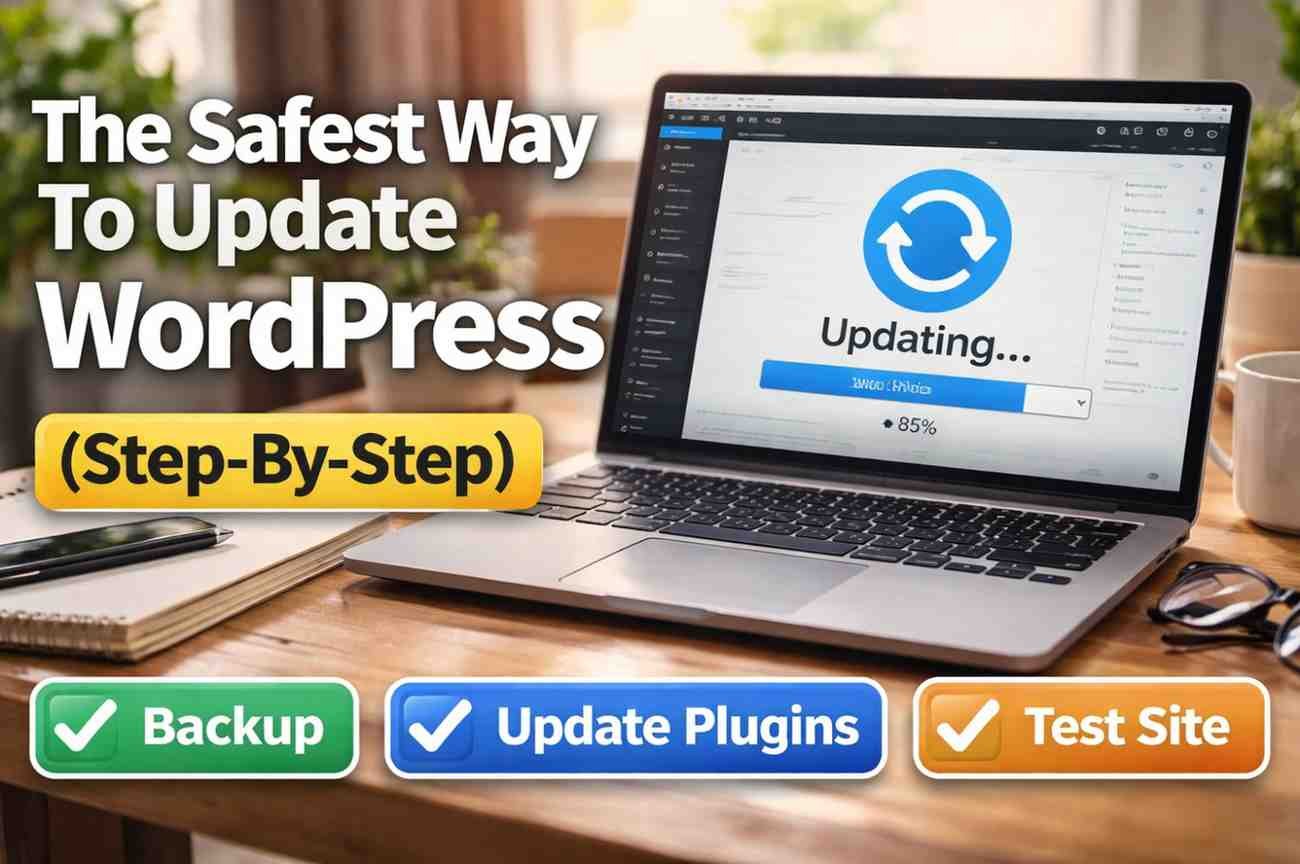
The order of updates matters more than most people realize. Doing it randomly can trigger conflicts.
Follow This Sequence:
- Update themes first
Your theme controls design and layout. Updating it first ensures compatibility with newer plugins or core changes. - Update plugins one by one
Avoid bulk updates. Update each plugin individually and check your site after every update. - Update WordPress core last
Once everything else is stable, update the core system.
This approach reduces the chances of multiple things breaking at once, making it easier to identify issues.
How To Protect SEO During Updates
Most blogs don’t talk enough about what happens after the update, and that’s where SEO damage usually occurs.
Check Core Web Vitals Immediately
After updating, test your site speed using tools like Google PageSpeed Insights. Pay attention to:
- Largest Contentful Paint (LCP)
- Cumulative Layout Shift (CLS)
If these metrics worsen, your rankings can be affected.
Audit Your Links And Redirects
Broken links are common after updates, especially if plugins or permalink structures change.
Use Search Console to:
- Identify 404 errors
- Fix redirects quickly
- Ensure important pages are still accessible
Clear All Caches
Caching issues can make your site appear broken even when it’s not.
Clear:
- Website cache (via plugins)
- CDN cache (like Cloudflare)
- Browser cache
This ensures visitors and search engines see the updated version of your site.
Monitor Traffic And Engagement
After updating, keep an eye on analytics. If you notice sudden drops in traffic or session duration, something might be off.
Early detection makes fixing much easier.
Post-Update Checks Most People Ignore
This is where experience really shows. A site might look fine at first glance but still have hidden issues.
Manually Check Important Pages
Go beyond the homepage. Test:
- Contact forms
- Checkout pages
- Landing pages
- Navigation menus
Even one broken element can impact conversions.
Use WordPress Site Health
WordPress has a built-in Site Health tool that highlights performance and security issues. It’s worth checking after every update.
Run A Security Scan
Updates can sometimes introduce vulnerabilities, especially through plugins.
Tools like Wordfence or MalCare help detect:
- Malware
- Suspicious activity
- Security gaps
Common Mistakes That Cause Problems
From experience, these are the biggest mistakes people make:
- Updating everything at once
- Skipping backups
- Ignoring staging environments
- Not testing after updates
- Forgetting to clear the cache
- Assuming “update = done”
Avoiding these alone puts you ahead of most website owners.
FAQs: How To Update WordPress Safely Without Affecting Your SEO Or Performance
1. Is It Safe To Update WordPress Automatically?
Automatic updates are fine for minor releases, but for major updates, manual control is safer. It allows testing and avoids unexpected issues.
2. How Often Should I Update WordPress?
You should check for updates weekly. Delaying updates can expose your site to security risks and compatibility issues.
3. Can Updating WordPress Affect SEO Rankings?
Yes, if it causes broken links, slower load times, or layout issues. That’s why post-update checks are critical.
4. What Should I Do If My Site Breaks After An Update?
Restore from backup immediately, then identify the issue using a staging site before attempting the update again.
Final Thoughts
Updating WordPress safely isn’t about being overly cautious; it’s about being structured. Most issues people face come from rushing the process or skipping steps that seem optional at the time. When you approach updates with a system backup, test, update, and verify, you remove almost all the risk. Over time, this becomes second nature, and you stop worrying about updates breaking your site.
Stay consistent with your process, and updates will feel like maintenance, not a threat.